
It has been about a year now since WordPress introduced the new Gutenberg “block editor.” Although my impression is that the block editor is nice for building websites, it is not very user friendly for someone who just wants to put up a blog post.
I’ve seen some articles and WordPress support posts online about how you can disable the Gutenberg Editor (aka “block editor”) in order to use the classic editor “plugin.” However, I have a “premium” plan, and I know lots of bloggers who use the “personal” or even the free plans. When I look at the plugins area of my WordPress dashboard, I see that you have to have the more costly “business” plan, which is three times more expensive than my “premium” plan, to be able to use plugins. Maybe the problem is also because my blog is hosted by WordPress instead of another website host? All I know is, I don’t see a place to disable Gutenberg in my settings and I can’t install the “Classic Editor” plugin, either. Hence the background for today’s problem-solving post.
Now, maybe everyone else already knows how to access the “Classic Editor” in WordPress, making my post both unnecessary and possibly a little pathetic. But until I stumbled upon it while editing an earlier post, I didn’t know I still could use the classic editor. So just in case you’re suffering through with the block editor like I was, here is my own workaround to bypass the block editor and write all my blog posts using the “Classic Editor.”
You can click on the images below to enlarge them. I screenshot the whole screen to provide the overall context, but then the details are too small to see well.
First, there appears to be no way around starting your post with the block editor. If you know how to start out your posts from the get-go with the classic editor, I’d love to know your secret! In the meantime, I start with the block editor default, write my title, and then save my draft.
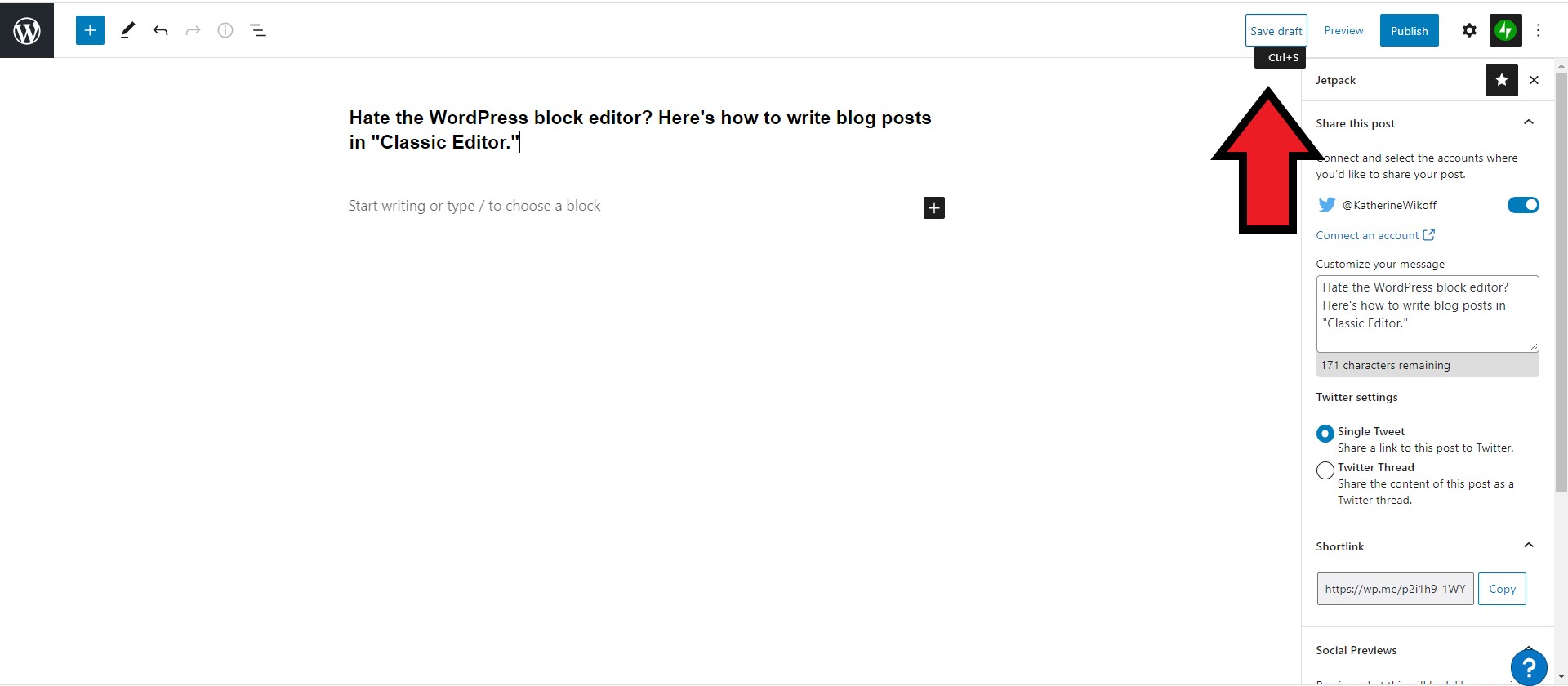
[UPDATE! I was just helping someone with their blog and discovered that there’s a “Screen Options” button at the upper right-hand corner of the screen. You can just click on that and choose the Classic Editor view. So check that option out and then use whatever else might be helpful in this post if that’s not quite enough to get you there. FURTHER UPDATE: NEVER MIND! Because now I don’t see “Screen Options” as an option anymore. So disregard that previous update and continue as described below 🙂 ]
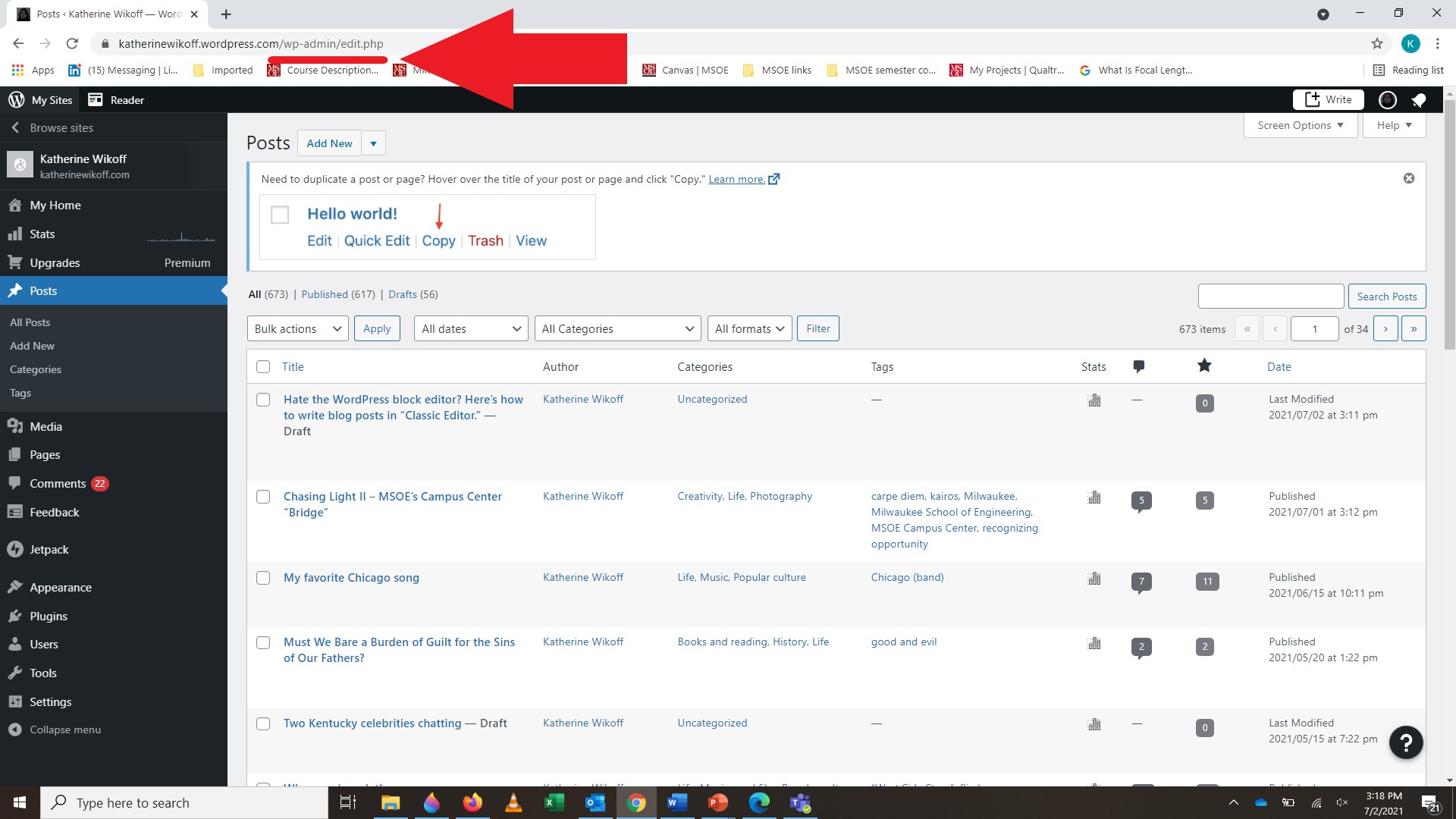
After saving my draft, I open a new tab in my internet browser right beside the first and type in my WordPress blog’s URL plus “/wp-admin/edit.php.” Or to make that a little more clear, to get to my old-school dashboard I type in:
katherinewikoff.wordpress.com/wp-admin/edit.php
Once in the old dashboard, you’ll see a list of your published and draft posts. If you hover your cursor arrow just under your current draft post, you’ll see a “Classic Editor” option appear under your post’s title.
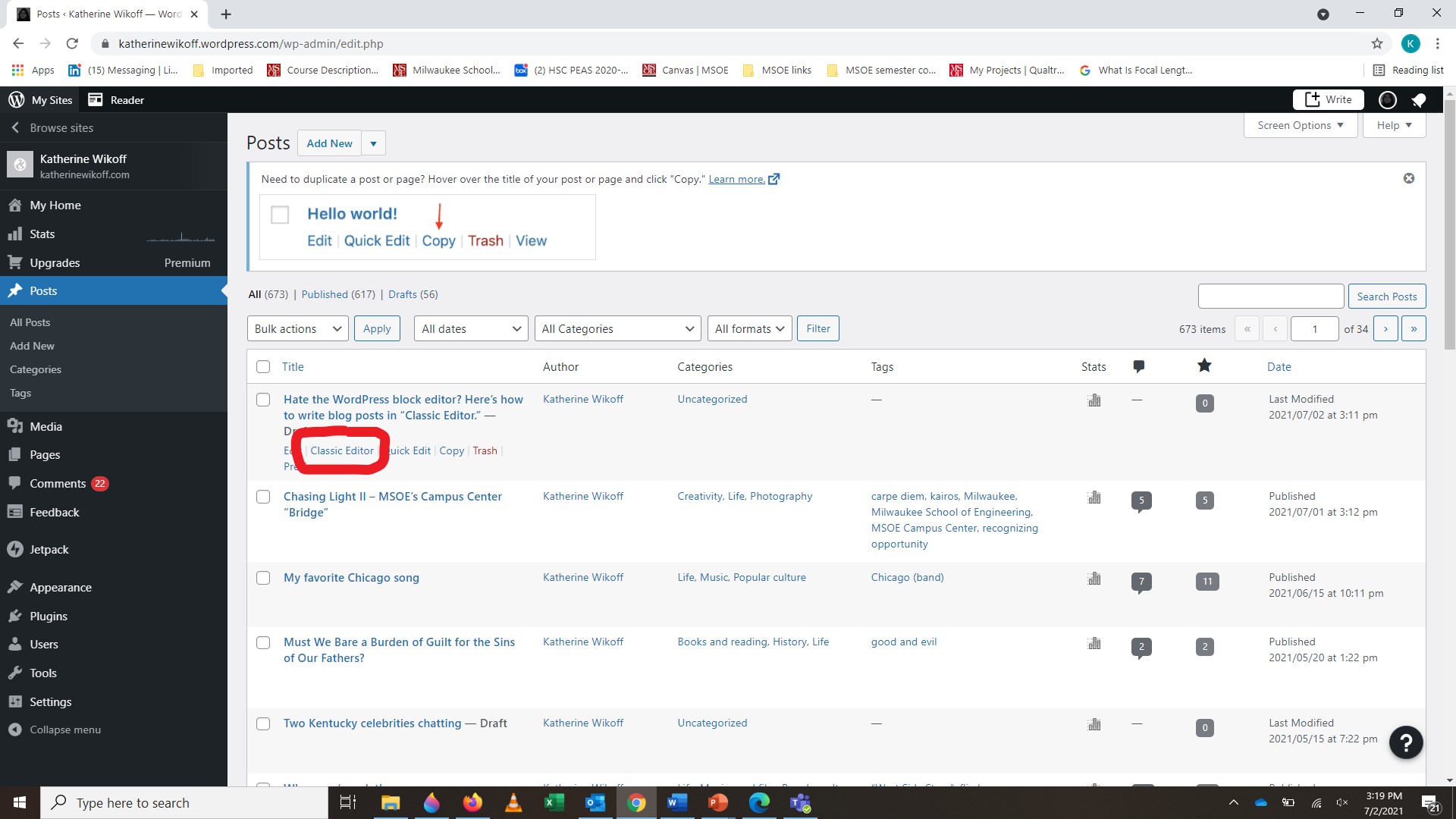
Click on “Classic Editor” and . . . HELLO, OLD FRIEND! ❤
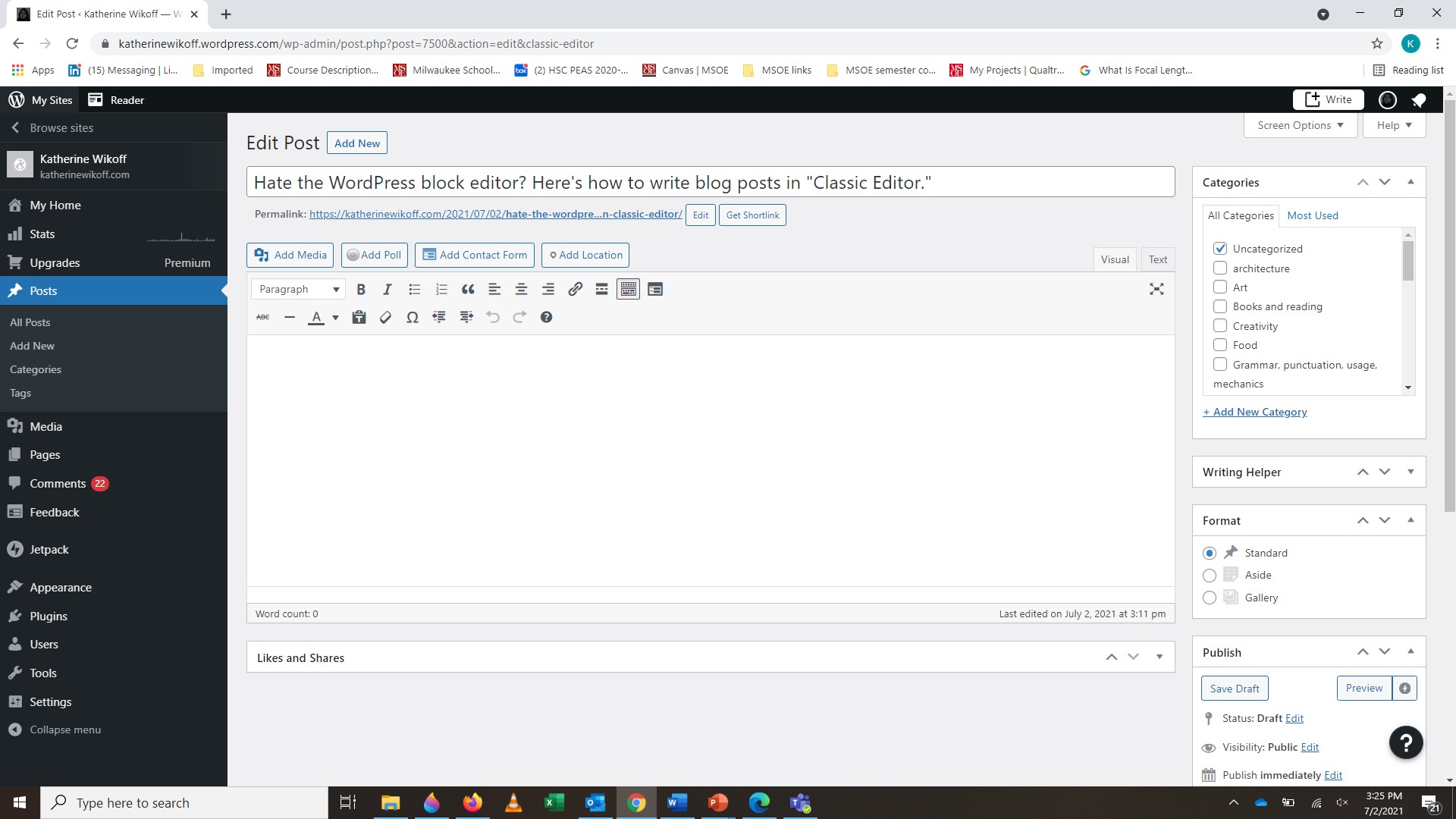
From here you can write your blog post as if the WordPress block editor never happened!
It would be so nice if WordPress could put a “Classic Editor” button right on the main interface to make it easier for bloggers who just want to put up a simple blog post and don’t care about all the bells and whistles (and aggravations) of the block editor.
But at least for now WordPress has kept the Classic Editor as an option if you’re willing to do the extra work of finding it.
[UPDATE: I’ve noticed lately that if I do anything beyond writing the title and then saving, there’s no “Classic Editor” option when I hover over the saved title in the dashboard. Like if I type even just the first couple words of my post and then save, that’s enough to wreck things. Then all I can see is “Quick Edit,” which doesn’t provide the “Classic Editor” interface. So FYI, write the title only, then save, then go to your dashboard and hover over that saved title in your posts.]
Would you like new posts delivered to your inbox? To subscribe, click here.




 Katherine Wikoff